 Chrome PDF Tools
Four buttons Chrome's PDF viewer is missing.
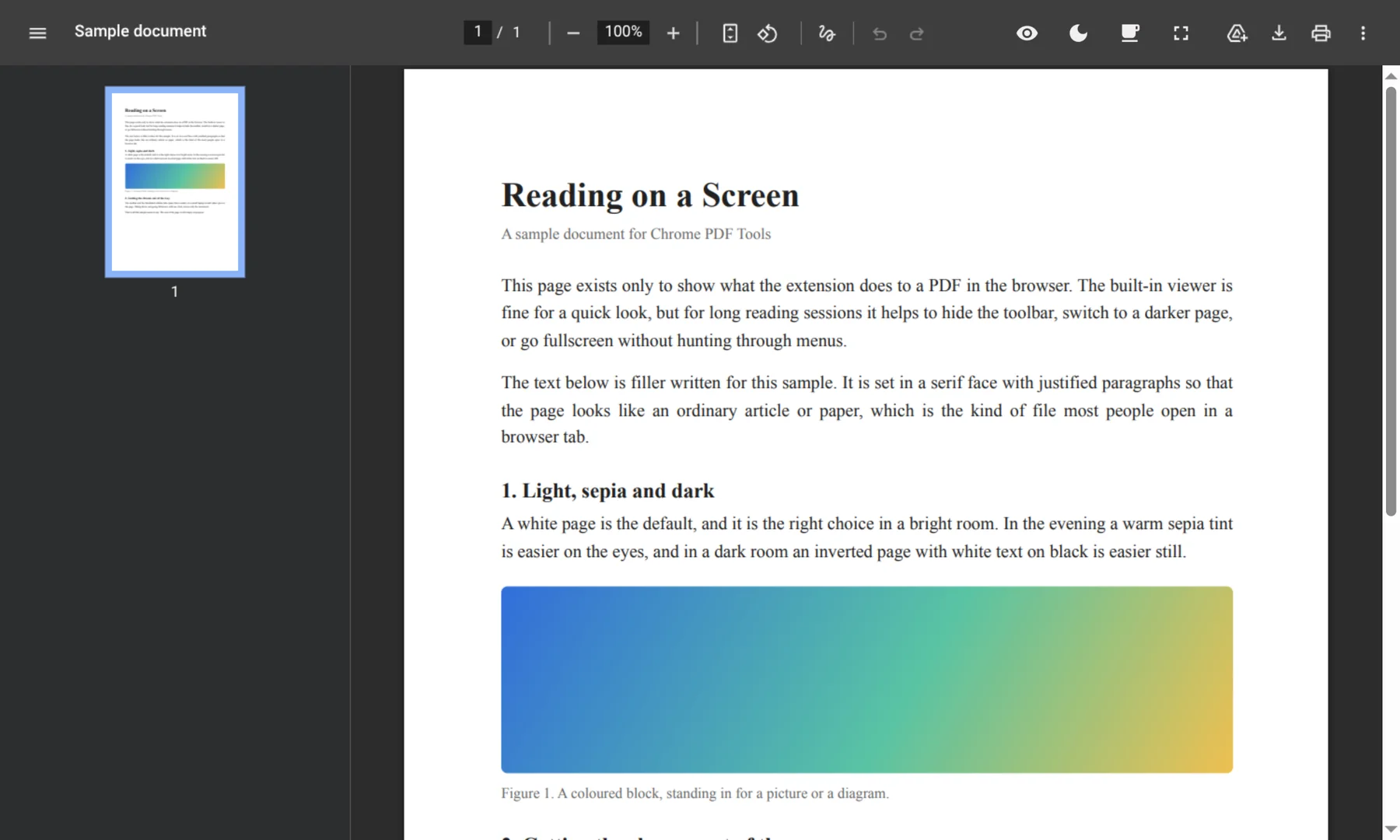
A small extension for Chrome, Brave and Edge. It adds dark mode, sepia mode, a way to hide the toolbar and a fullscreen button, right next to the viewer's own controls.
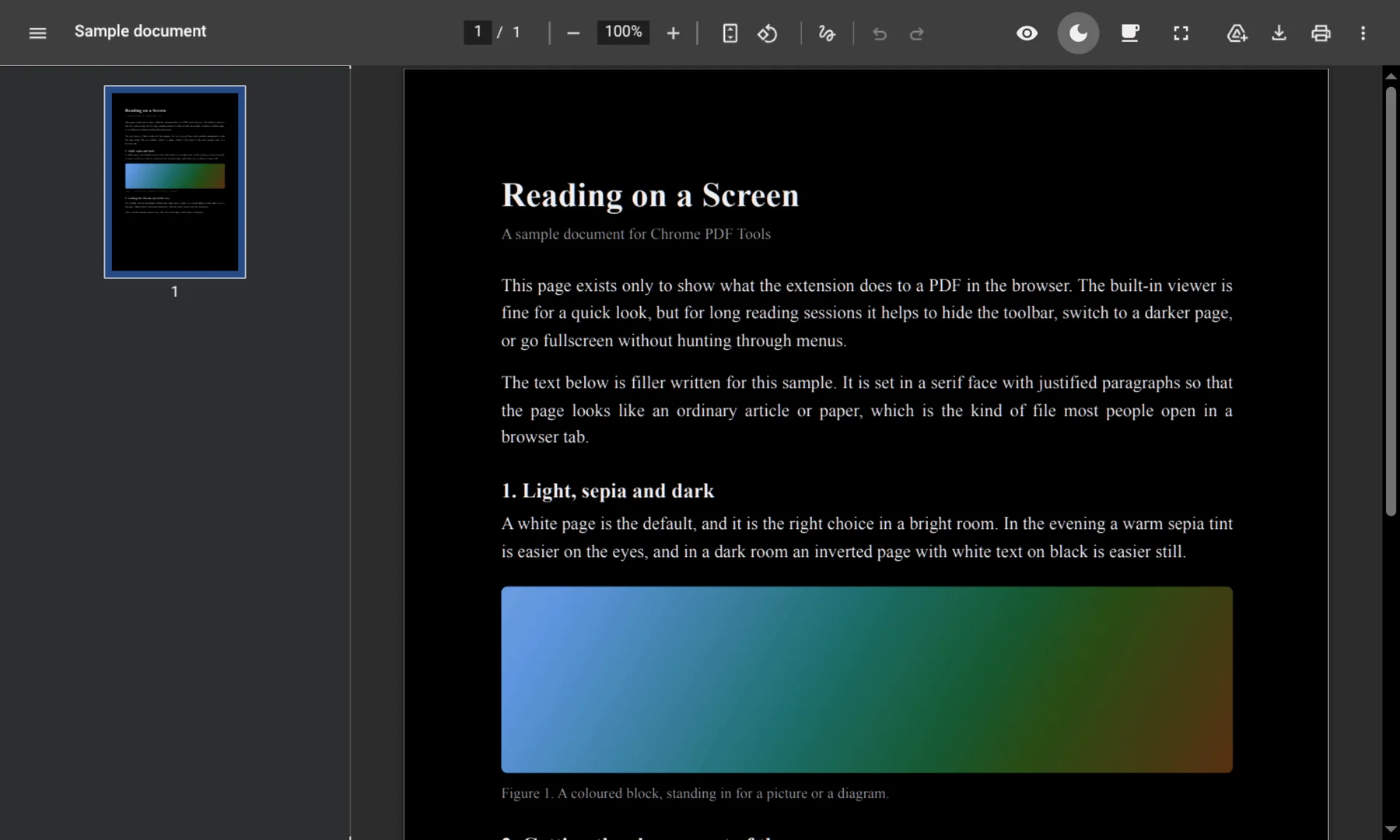
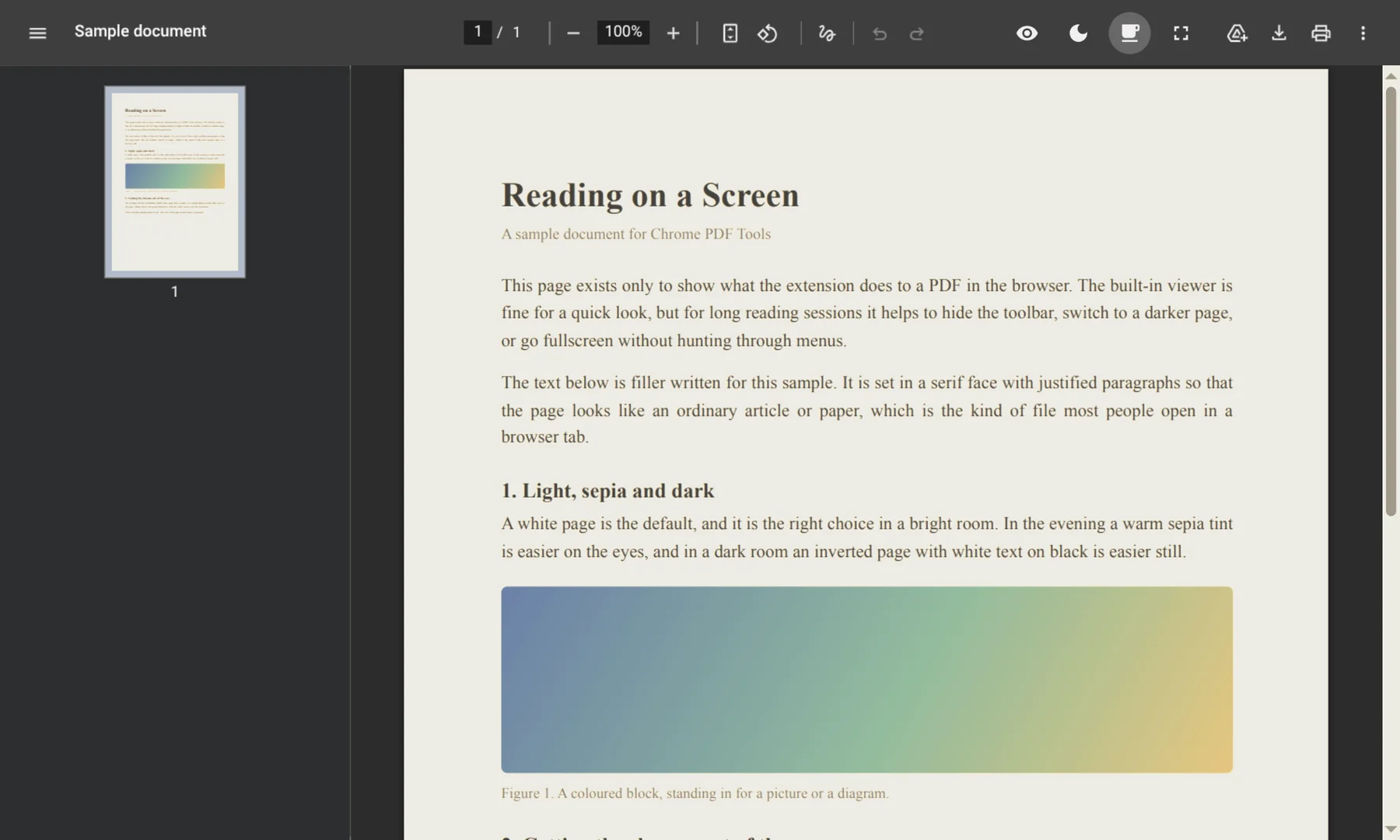
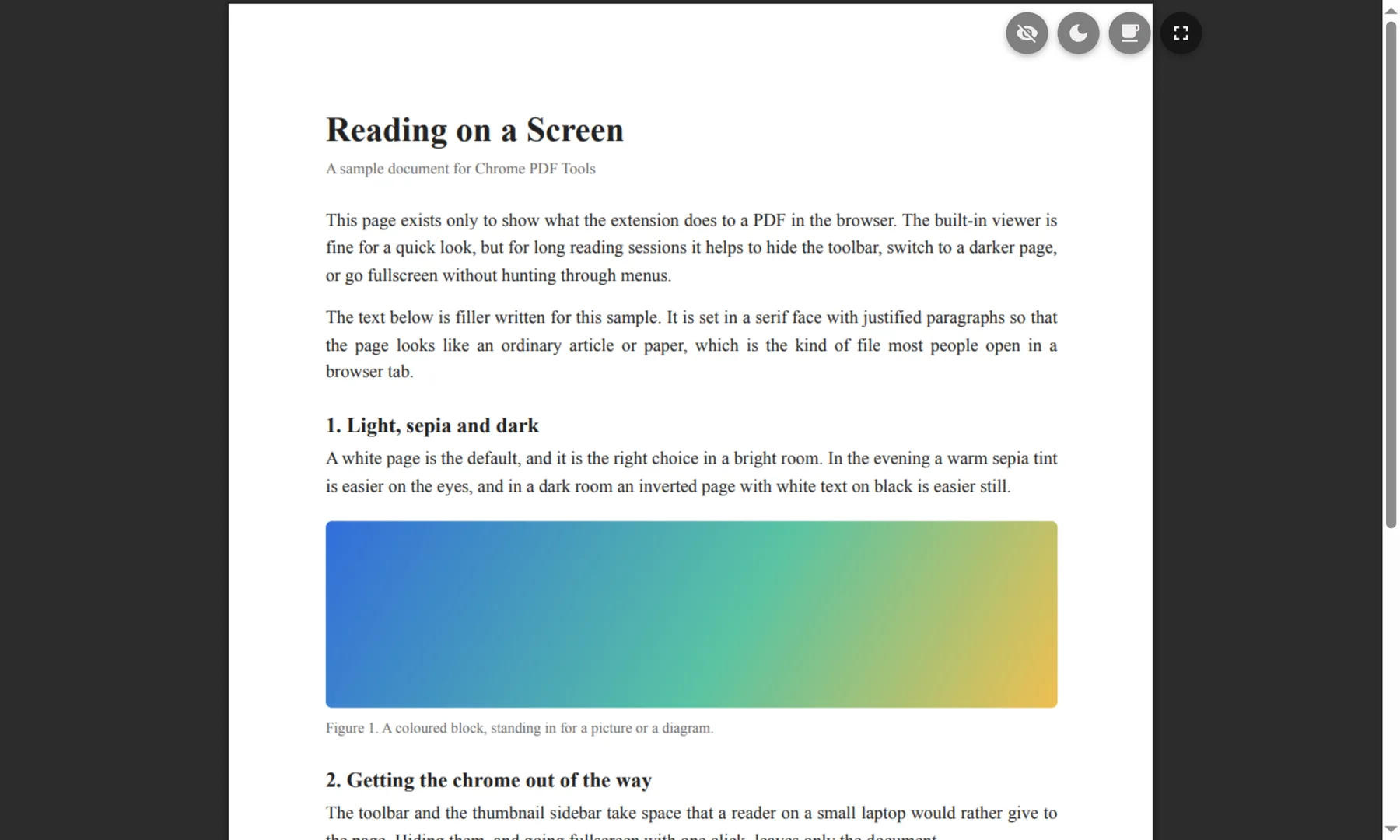
Try it: the same page in each mode.
What each button does
Hide the toolbar
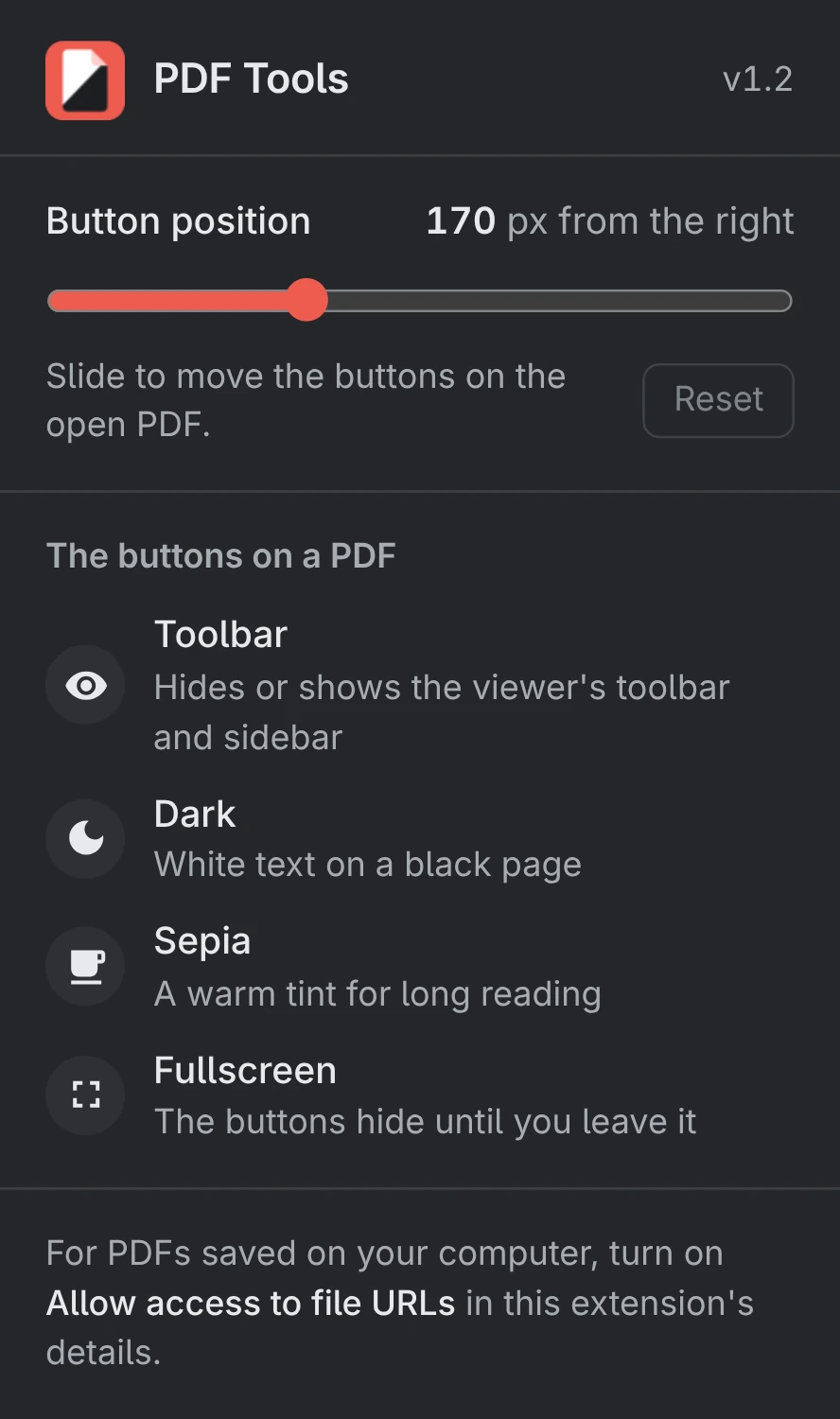
Removes the viewer's toolbar and sidebar so the page gets the whole window. Click again to bring them back.
Dark mode
A black page with white text, and colours that keep close to their original hue. Only the page changes; the viewer around it stays as it is.
Sepia mode
A warm tint over the page, for long reading sessions.
Fullscreen
One click instead of F11. The four buttons hide while you're in fullscreen and come back when you leave.
Put the buttons where you want them
Click the extension's icon in the browser toolbar to open its panel. The slider moves the buttons left or right on the open PDF as you drag.
- The position is saved, so it's the same the next time you open the browser.
- Dark or sepia stays on in that tab when you hide or show the toolbar.
- Nothing leaves your browser. The extension asks only for storage and the active tab.
Install it in four steps
Load it as an unpacked extension
- Download the ZIP and extract it to a folder you'll keep.
- Open your browser's extensions page:
chrome://extensionsbrave://extensionsedge://extensions - Turn on Developer mode.
- Click Load unpacked and pick the extracted folder.
For PDFs on your computer
Out of the box the extension works on PDFs opened from websites. For files on your own drive, open the extension's Details on the extensions page and turn on Allow access to file URLs.
Prefer a single file? The Releases page also has a .crx package, though Chrome and Brave sometimes block those.